
Hinduism Today App Now Available for Android on Google Play!
August 12, 2015News Flash! HT App on Google Play!
August 28, 2015: This is an update to our previous announcement. The Hinduism Today app is now available for all Android smart phones. You can get it on Google Play: Click here and install!
Apple iOS users: go here:https://itunes.apple.com/us/app/hinduism-today/id1023295974?mt=8
Today, August 12th, with fireworks and the annual Perseid meteor shower in the sky above, we triumphantly make known the launching of Hinduism Today's mobile app. For many months now the monks have been working among themselves and with experts to create an internet application worthy of Hinduism's flagship magazine and today Apple has put it on the App Store for all to download. For free! The Android version is coming soon to Google Play.
Around the globe there are millions who have no access to the Internet, and whose go-to device is an iPhone or Android. A recent poll claims that 70% of India's digitally-connected population have only a mobile device, without a computer at home. This app is designed to give access to our rich resources for students in Fiji, housewives in Mauritius, yogis in Rishikesh, seekers in Kuala Lumpur and Indophiles everywhere and provide them with a mobile-friendly reading experience of the magazine's one-of-a-kind stories and elegant graphics each quarter.
We hope you will not only download and test-drive it, but share the link with family and friends to enrich their lives and bring the Hindu community even closer. You can download it here (be sure to register so we can tell you when the next issue is available for downloading): https://itunes.apple.com/us/app/hinduism-today/id1023295974?mt=8
We offer today a short visual tutorial on its use. Follow the slideshow and captions for a quick introduction and overview.
There are (wouldn't you know) a couple of glitches that apparently took place in the deep catacombs of binary download, and they are being sorted out. We welcome your feedback and questions which can be sent to: studyhall@hindu.org.
Offered at the pristine holy feet of our founder, Satguru Sivaya Subramuniyaswami, who loved to quip, "Get the best and forget the rest."

Let the Celebrations Begin!
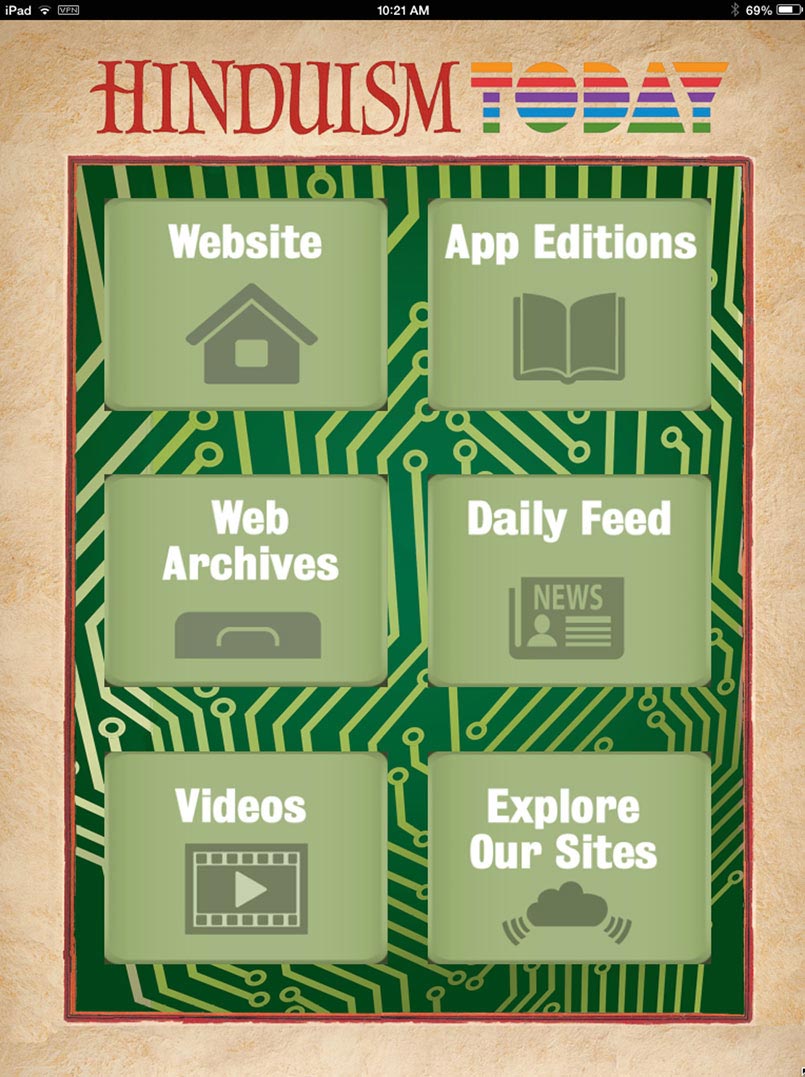
The HT app provides wide access to all Hinduism Today sites and resources through six buttons that will be described later in the slideshow.

This is the app logo which you will find on the App Store and that will become the icon on your mobile device.
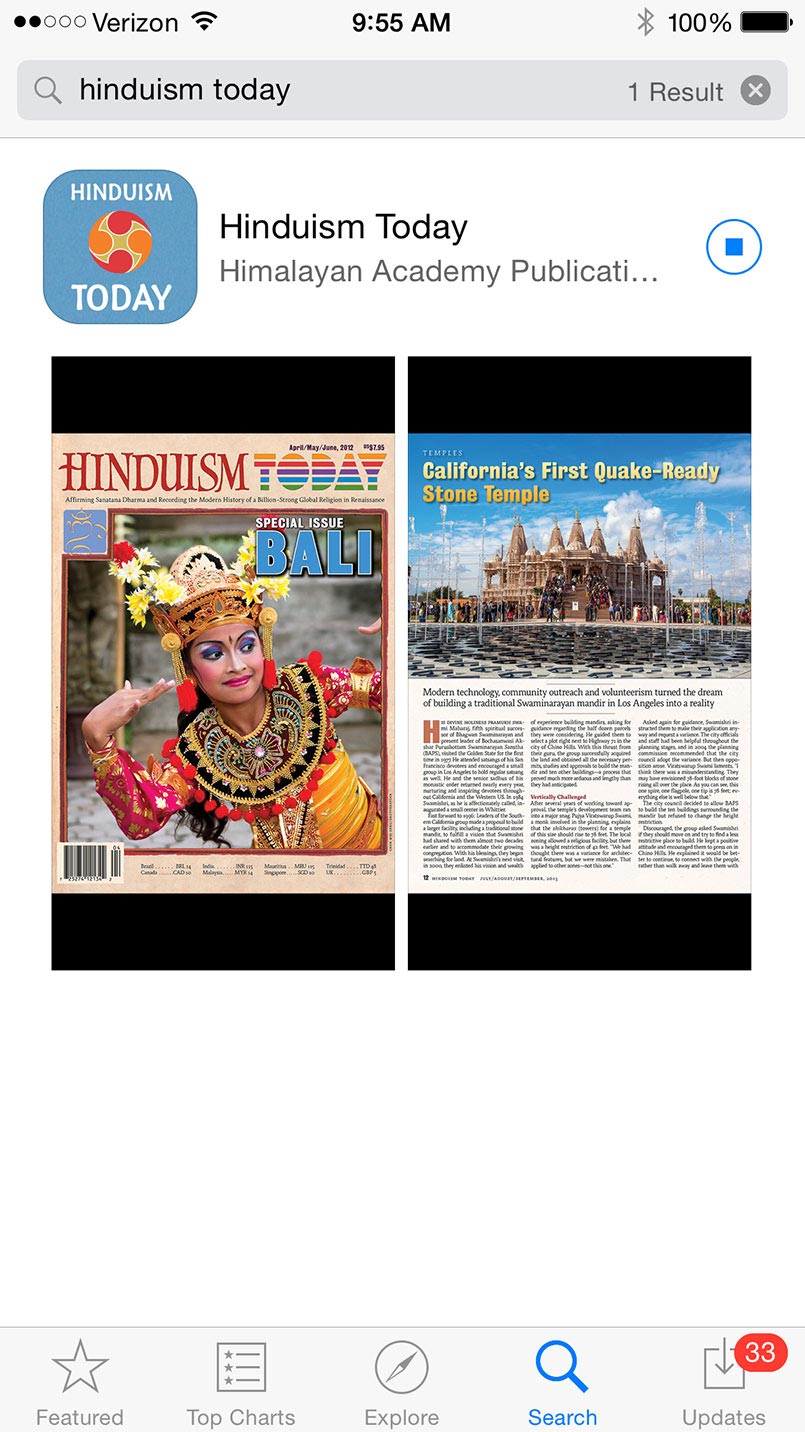
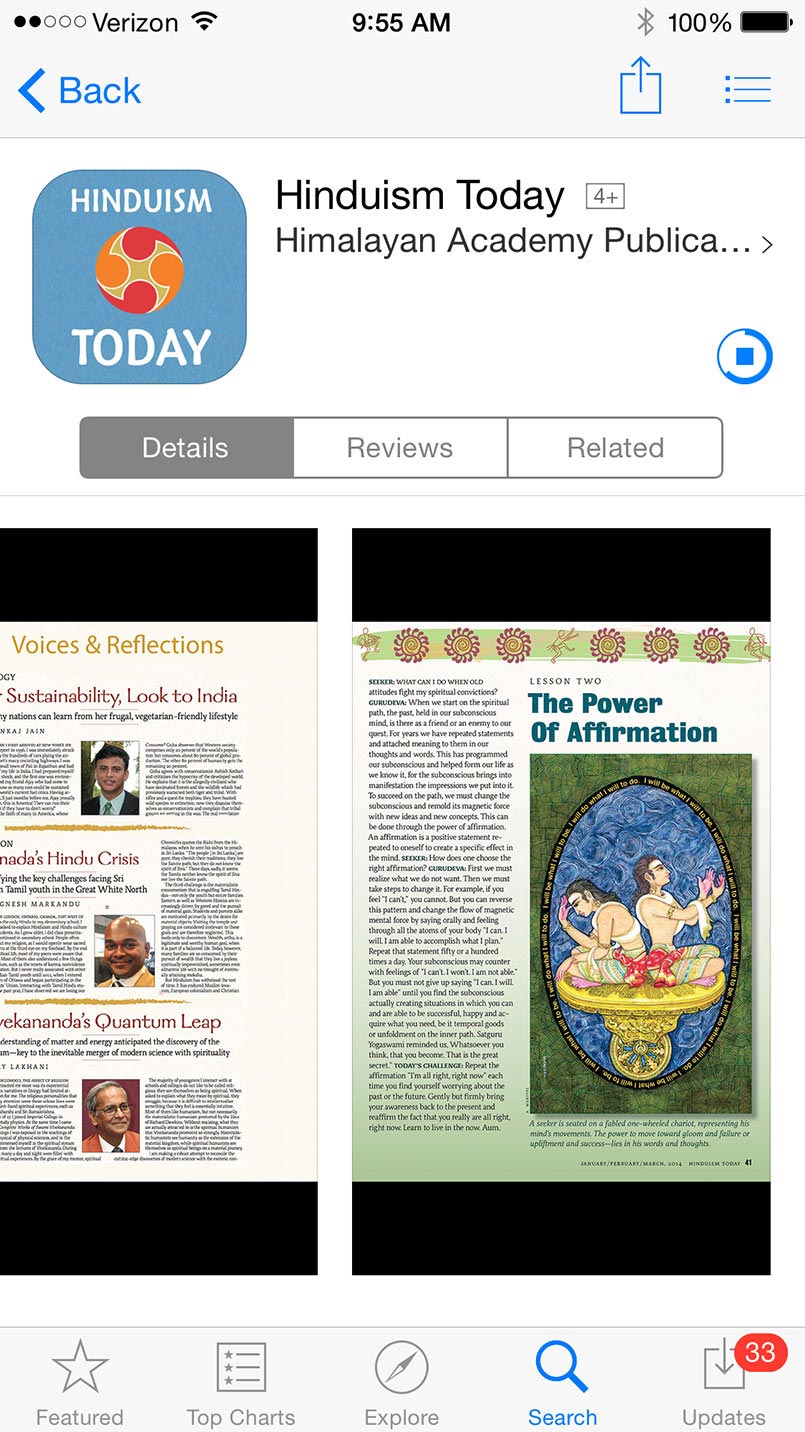
This is a shot of the app on the store, with a couple of representative spreads.
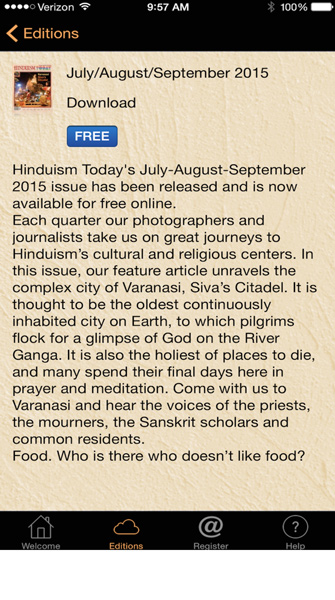
Once you download the app and click on it, this descriptive summary of the most recent edition will appear, inviting you to download it. Just click and wait a minute for it to be saved to your device. Notice the registration button at the bottom.
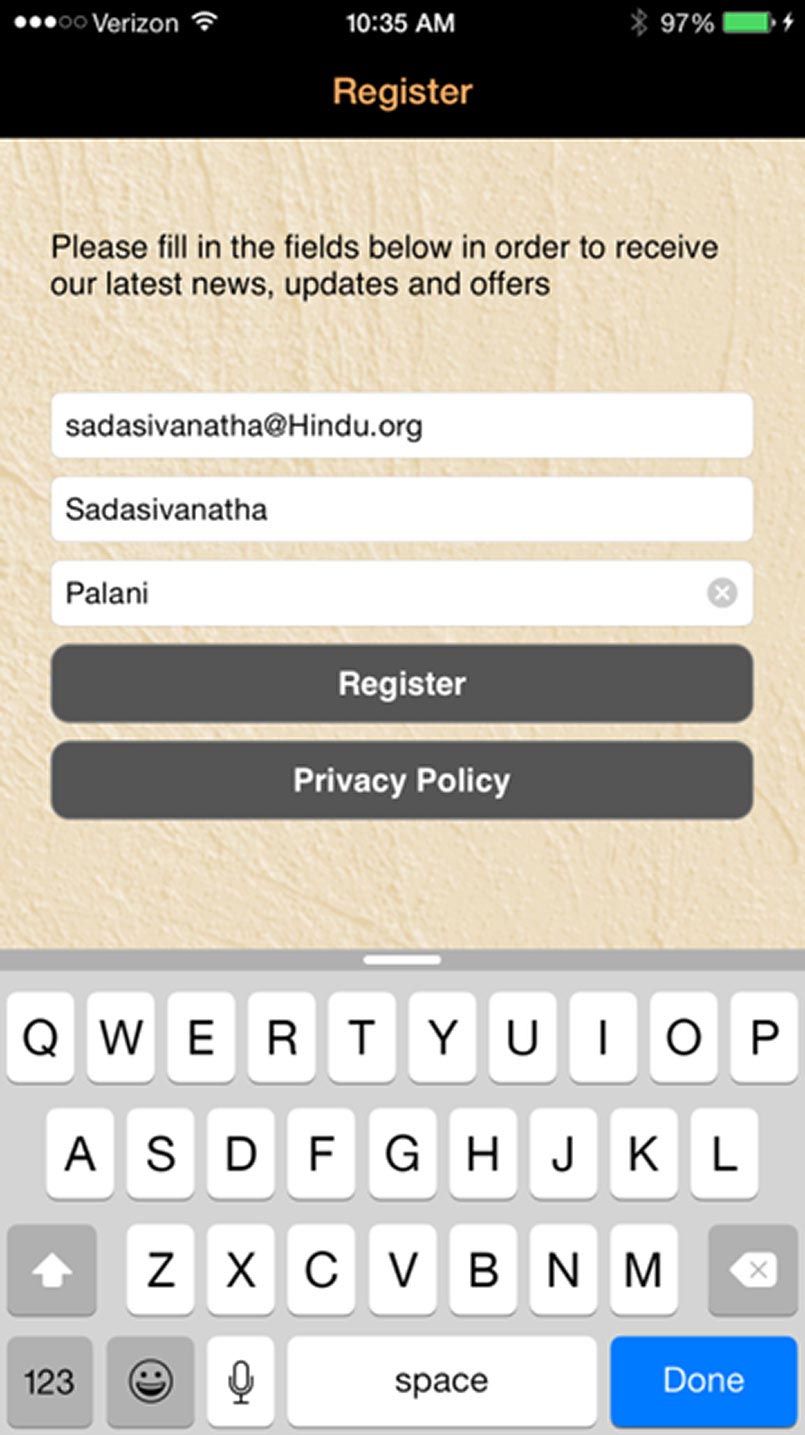
When you click, you get this dialog box for a simple registration which then allows us to keep you informed about new issues to download.
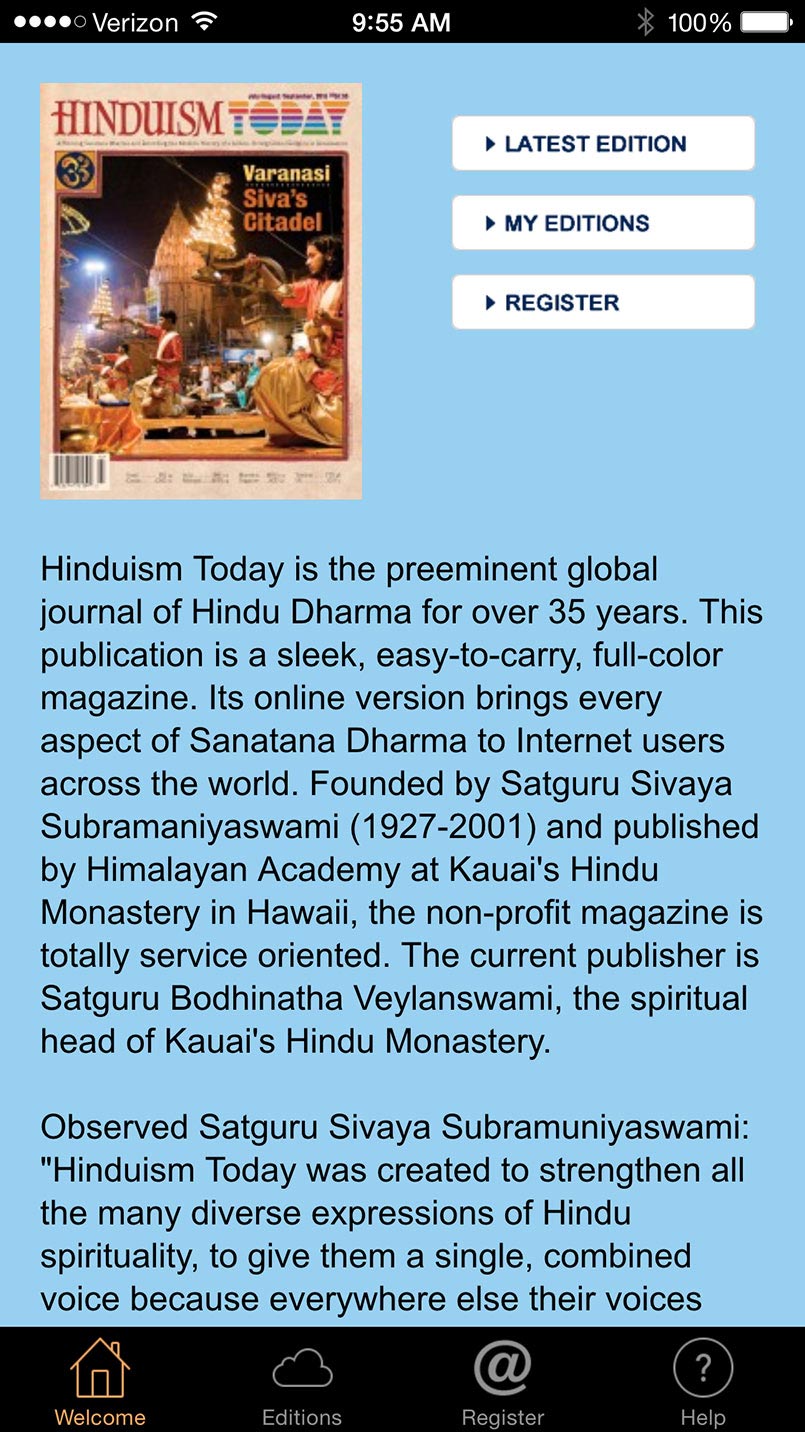
This page gives a summary of the magazine\
s history and mission statement.'
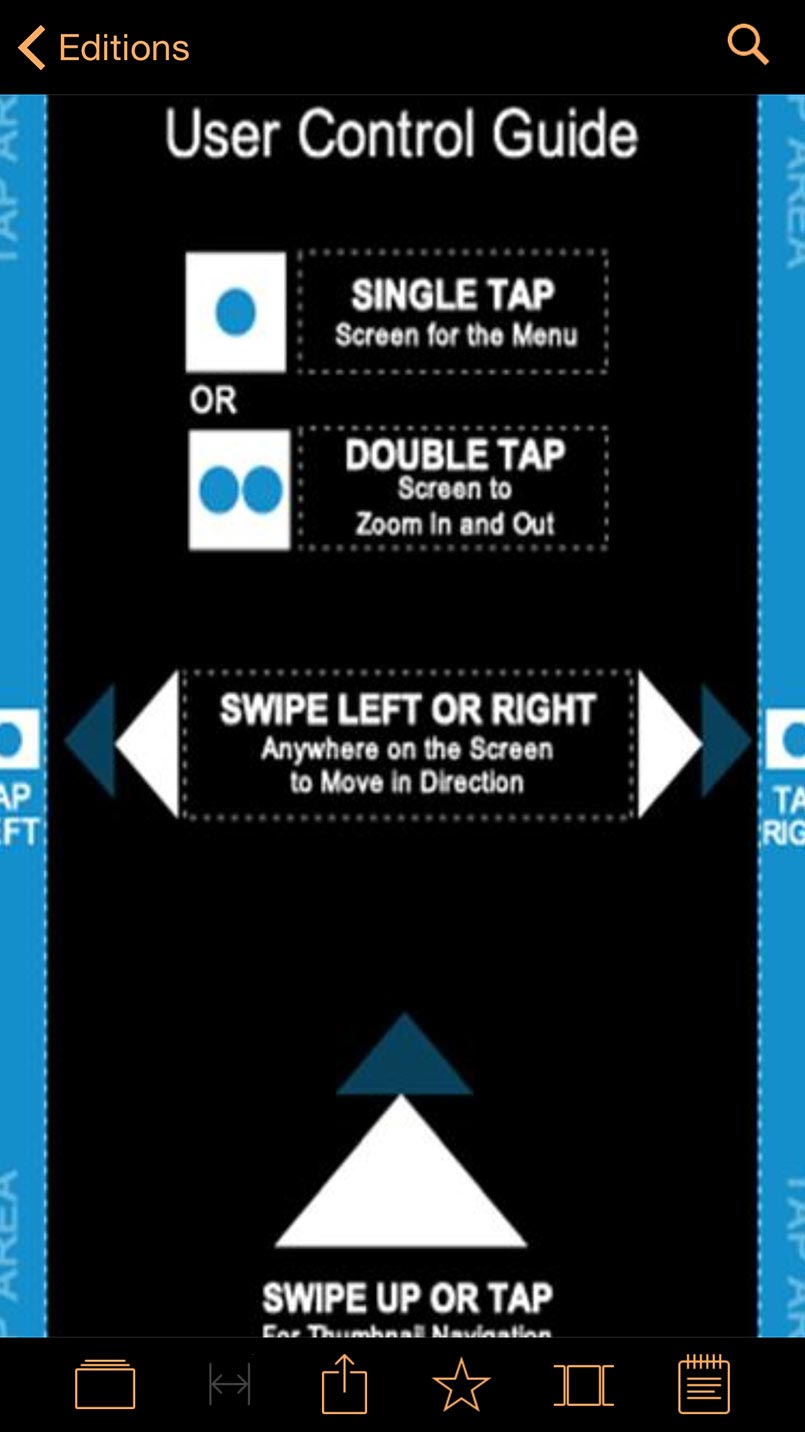
This diagram will appear only once when you first download, and not again (it is not in the help menu). Good to study this for a moment to learn the basics, which follow normal app navigation gestures.
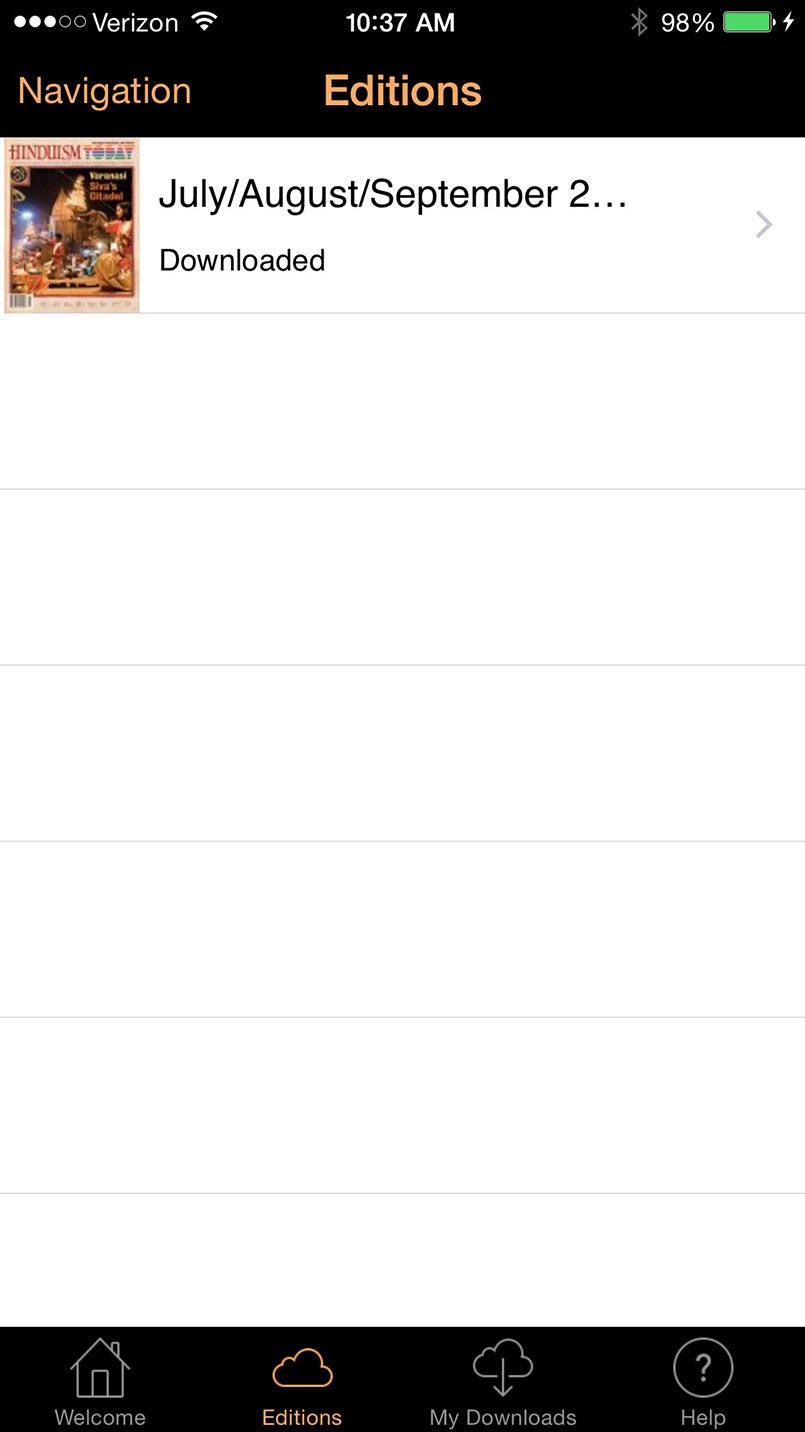
This page has only one cover to begin, but as the months pass by it will become your table of contents for all back issues.

Holding the device in portrait mode gives a single-page view, in this case the left side of a two-page spread on Varanasi.

Left to right bottom buttons are: table of contents, a two-page spread tool (dim here but activates when your device is held sideways), share options, Facebook, Twitter, email, a bookmark icon, a scrolling navigation bar, and a notes button.

This is a two page spread view, accessible through the second icon from the right.
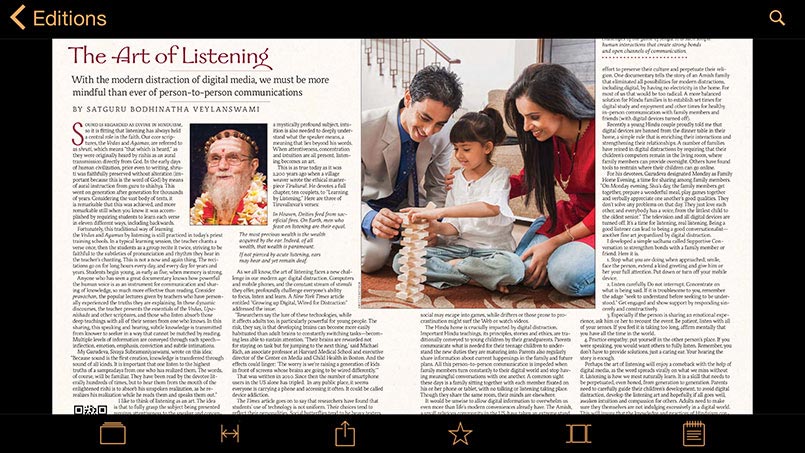
More spreads to follow. You can take thumb and index finger to zoom in and double click to return to 100% view.

A simple swipe left or right will turn the page.

Importantly (and not obviously) a single click in the middle of the screen will return the menu icons if they have gone missing.

This and the next slide show how a two-page spread is displayed in sepaarate screens when in portrait mode.

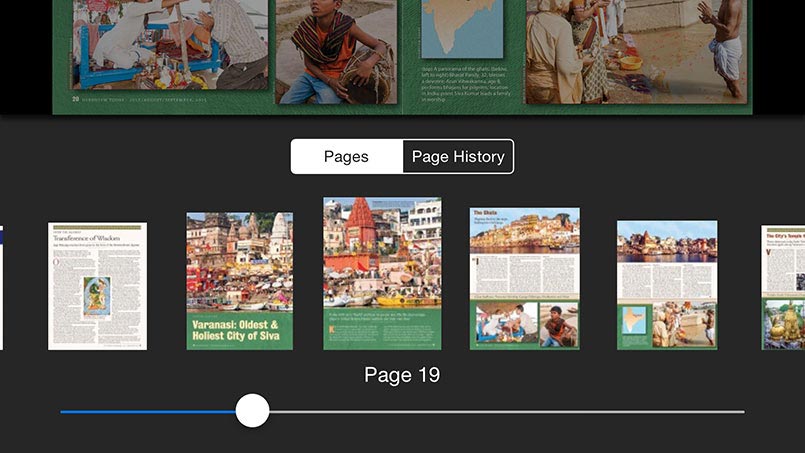
A close-up of the screen-flow style of navigation that appears at the bottom of the page when (this is important) you swipe up from the bottom. Note this little idiosyncrasy: this works only when there are no navigation icons at the bottom. So if you want to access this very useful feature, you first have to touch the middle of the screen once which disappears (should be a verb) the icons. Now, when you swipe up from the bottom the pages tool appears!
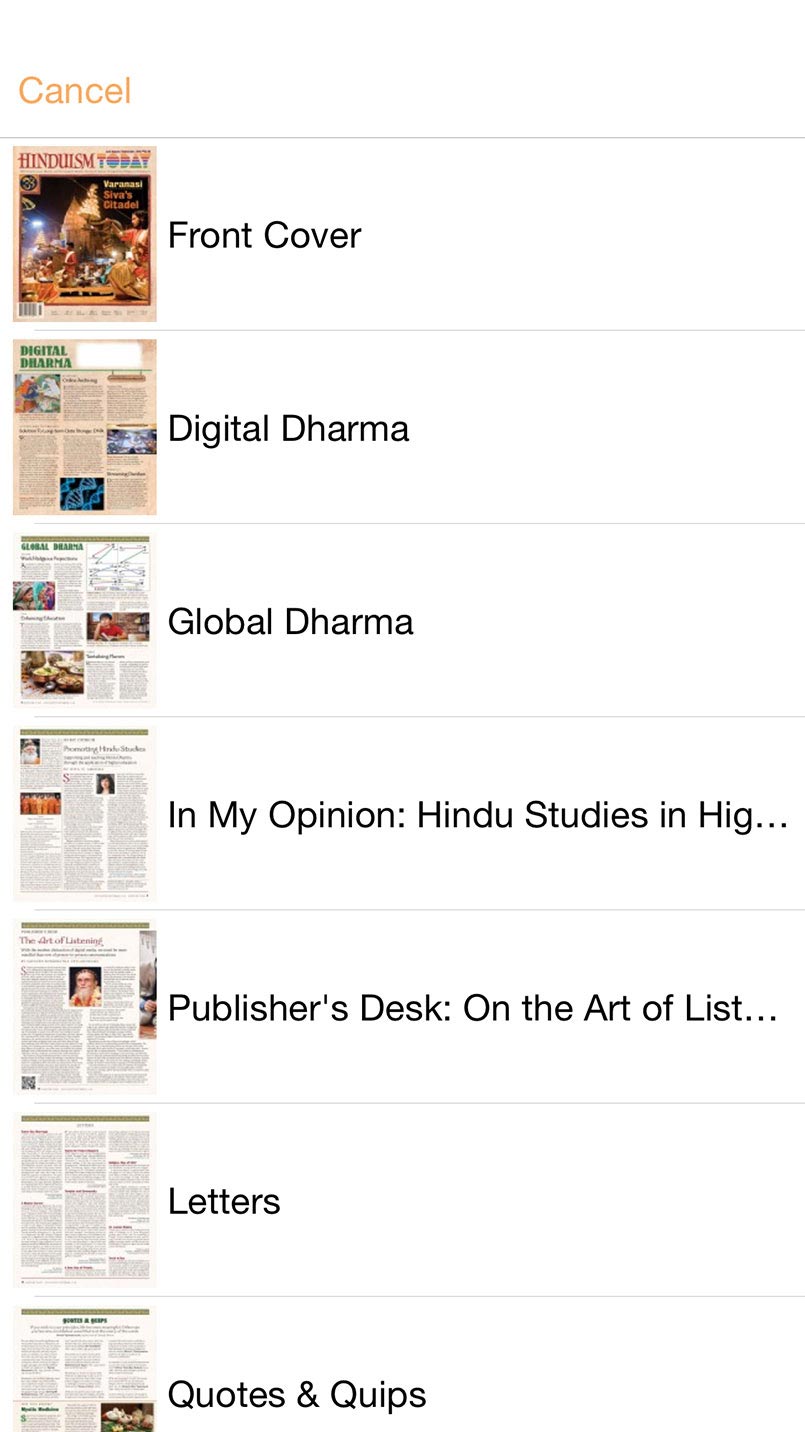
This is the other navigation tool, which appears when the far left bottom icon (looks like a file folder) is clicked.
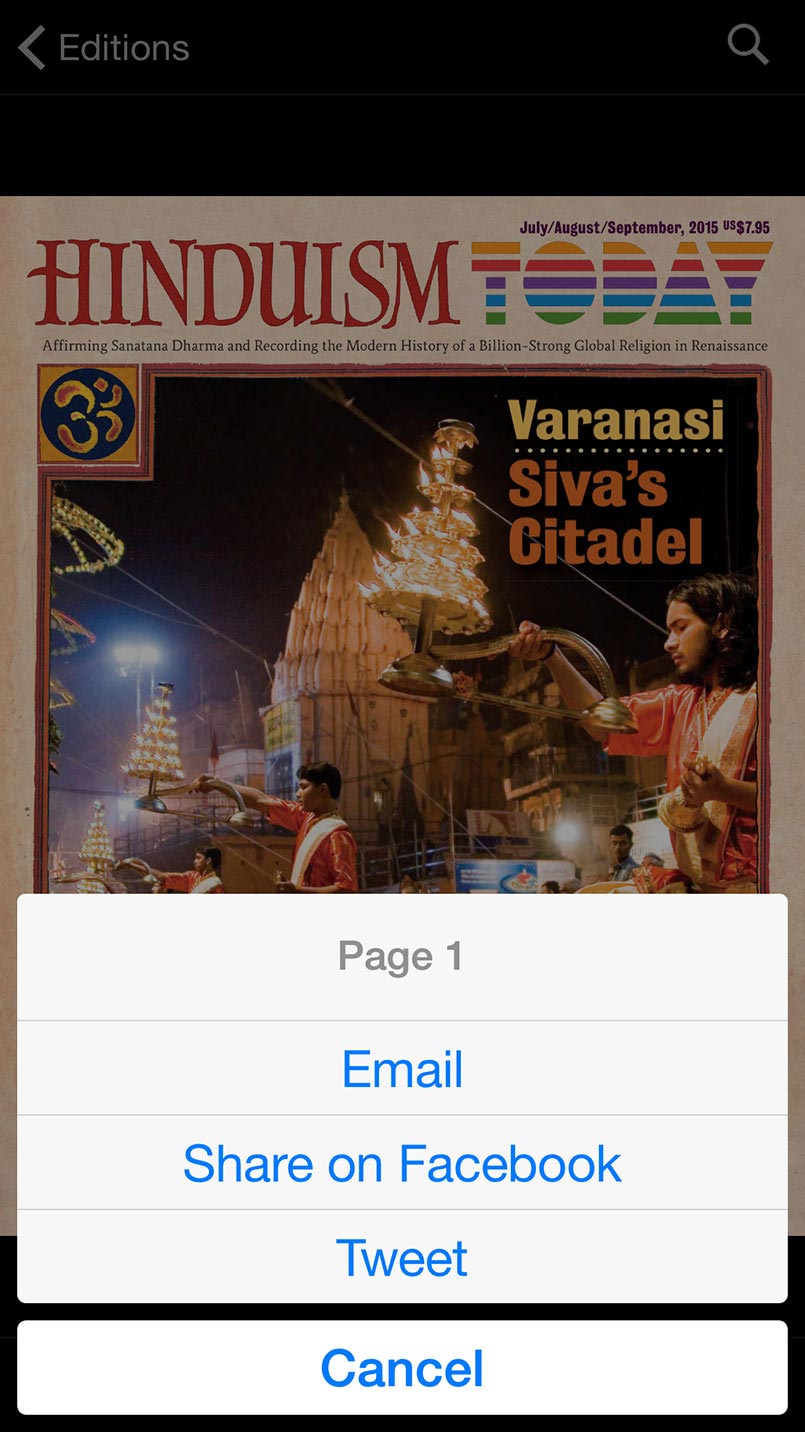
What you see when you click the sharing icon.
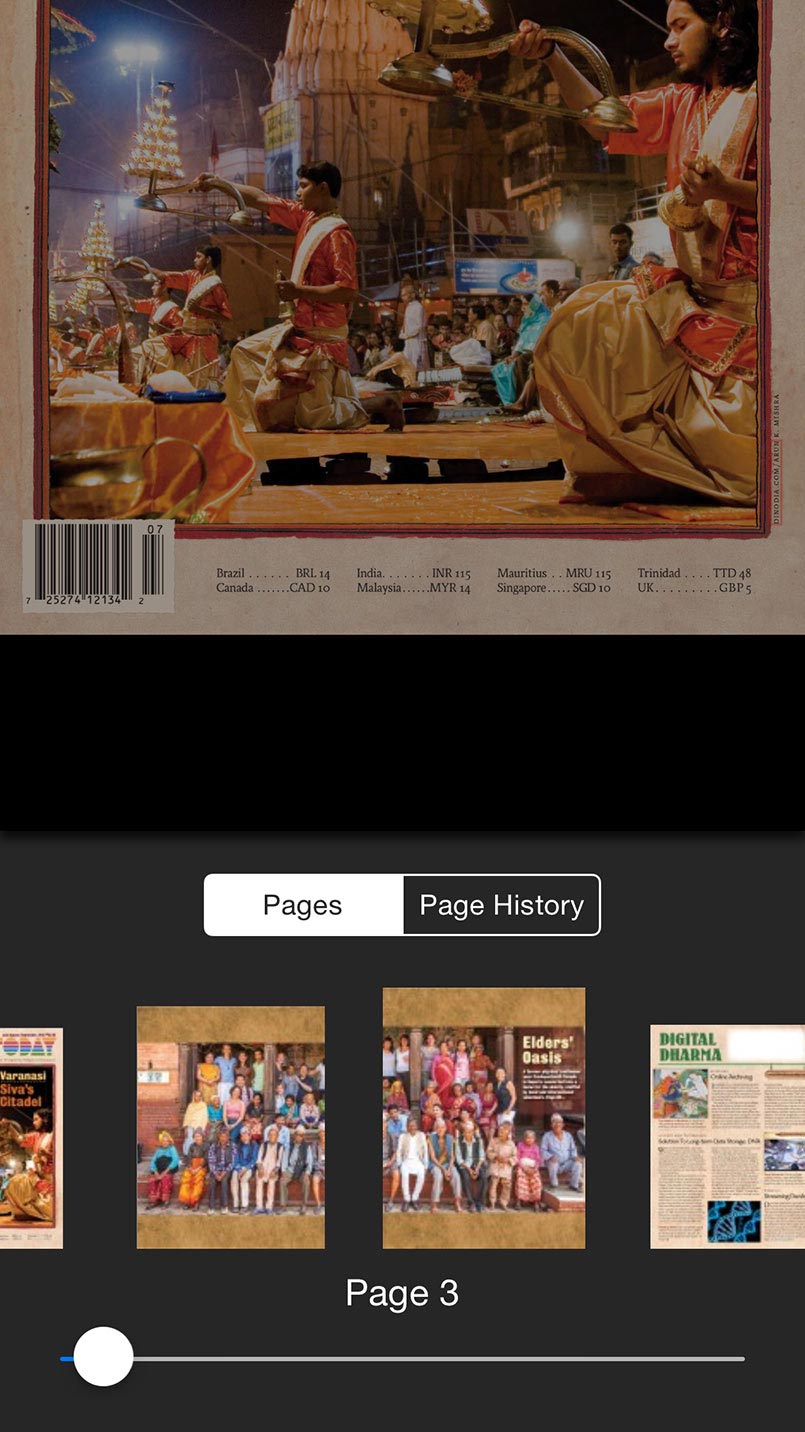
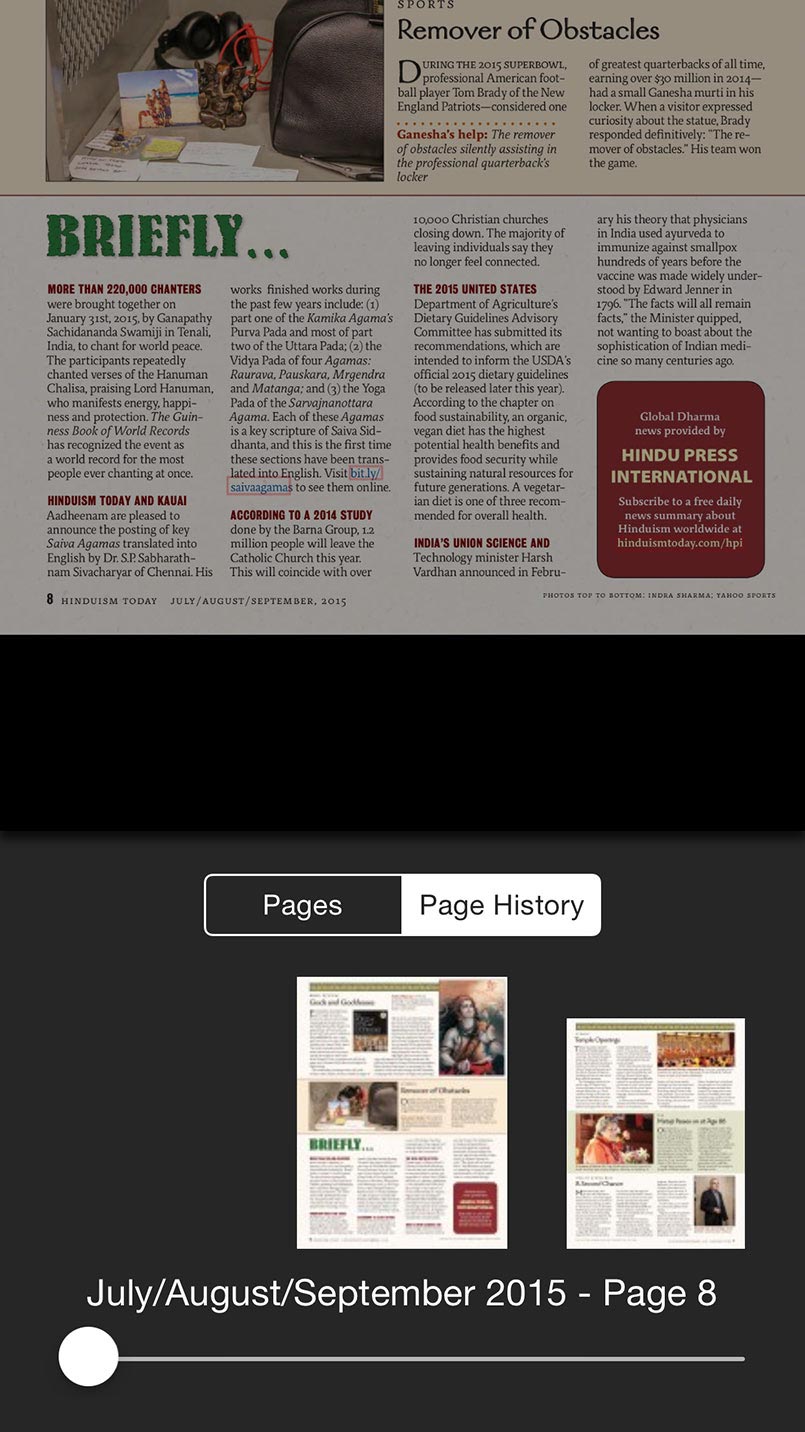
Mostly you will use pages, but if you click \"Page History\" you can move through your most recently visited pages.
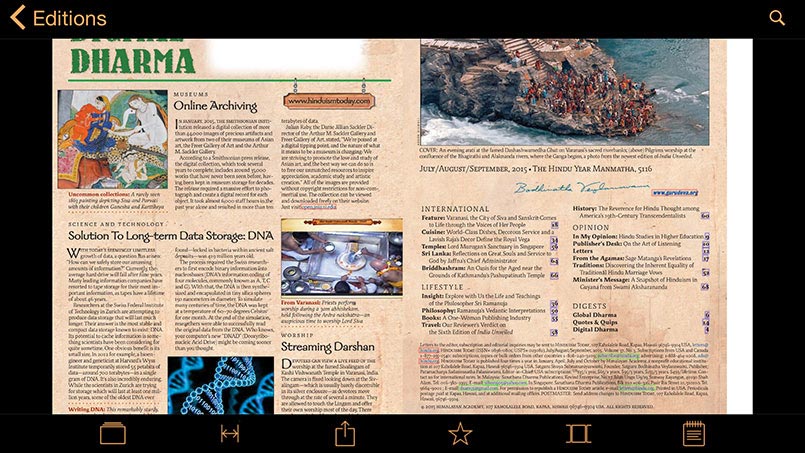
Note the search icon at the top right of the page
If it disappears, you can single click the middle of the screen to bring it back.
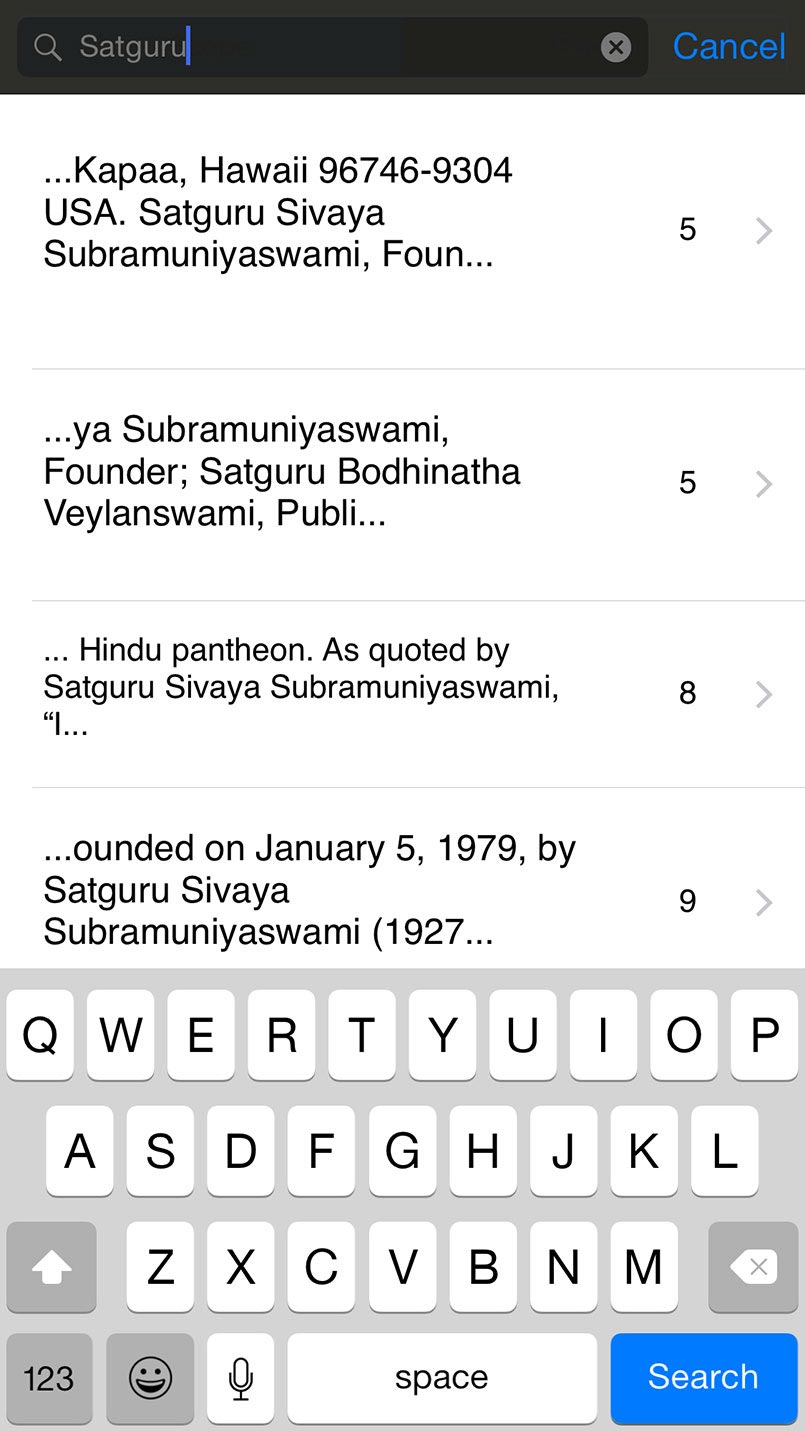
This is how a search for the word \"satguru\" looks. All instances in the magazine are shown alone with their page number. Click the one you want and go directly to that page.

The word you searched for appears in yellow.
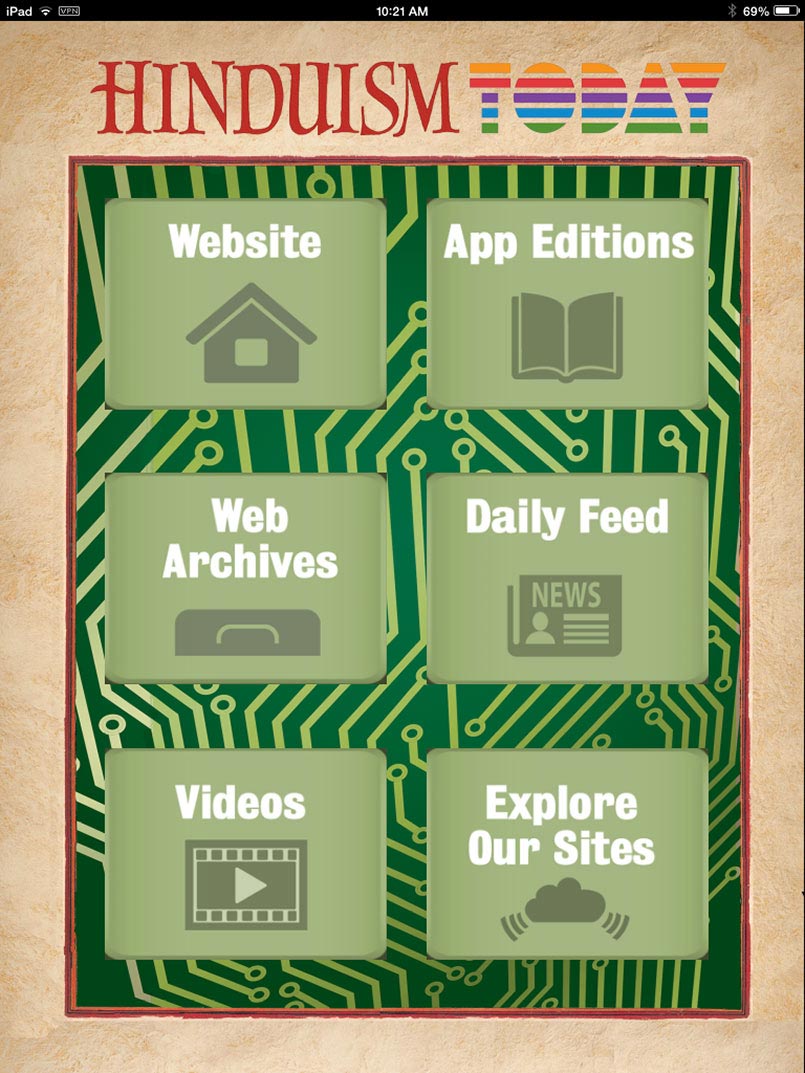
This is the navigation page as it appears on an iPad mini. Hitting the \"Website\" button takes you to our main Hinduism Today website. App Editions relates only to the downloaded digital magazines on your device. \"Web Archives\" take you to a list of all past issues of the magazine. \"Daily Feed\" goes to Hindu Press Internationals, our daily RSS feed. \"Videos\" takes you to the Hinduism Today collection of videos, including all of Bodhinatha\
s Publisher\'s Desks.'
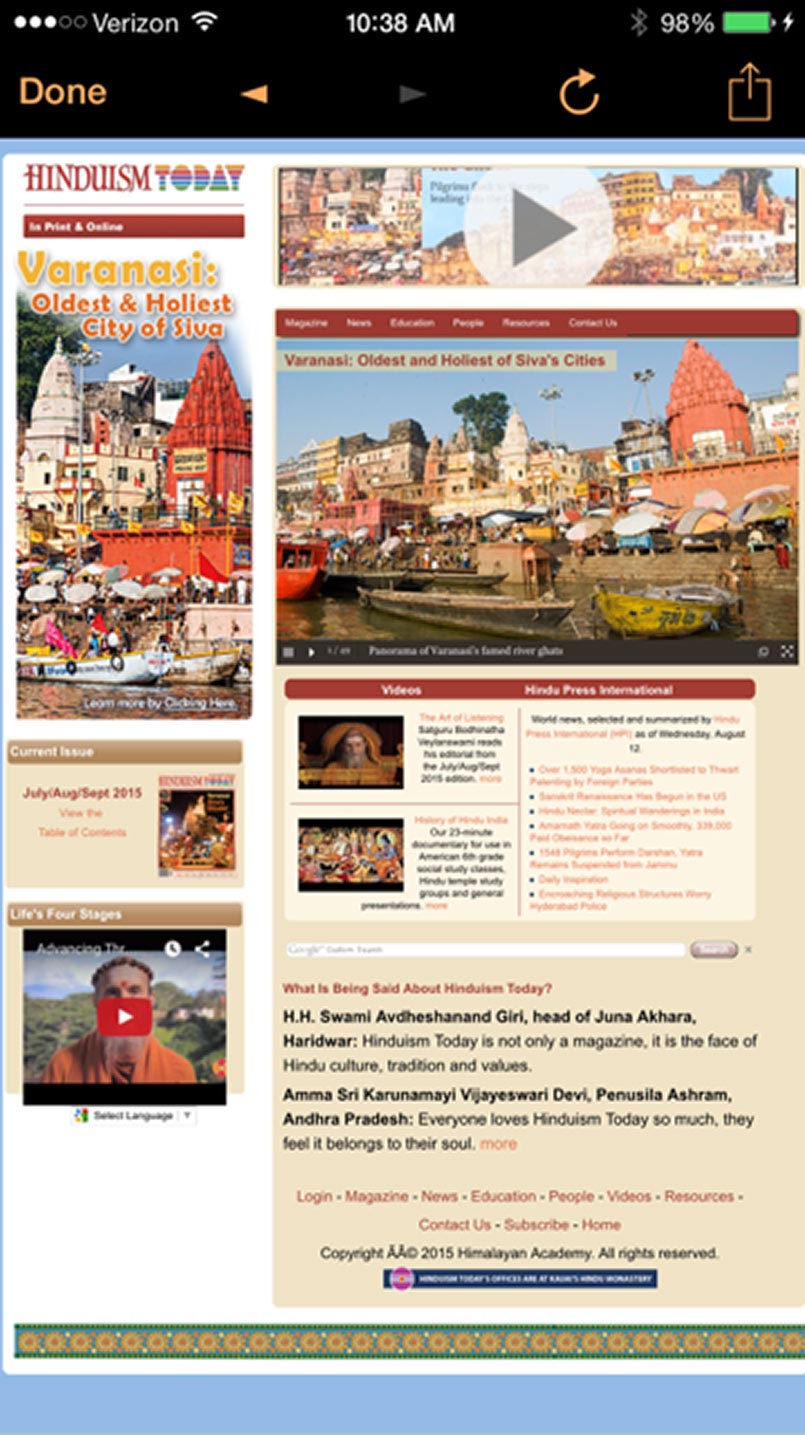
When you click on \"Website\" you get this....

The \"Explore Our Site\" button takes you here, to links to some key areas of our digital world.
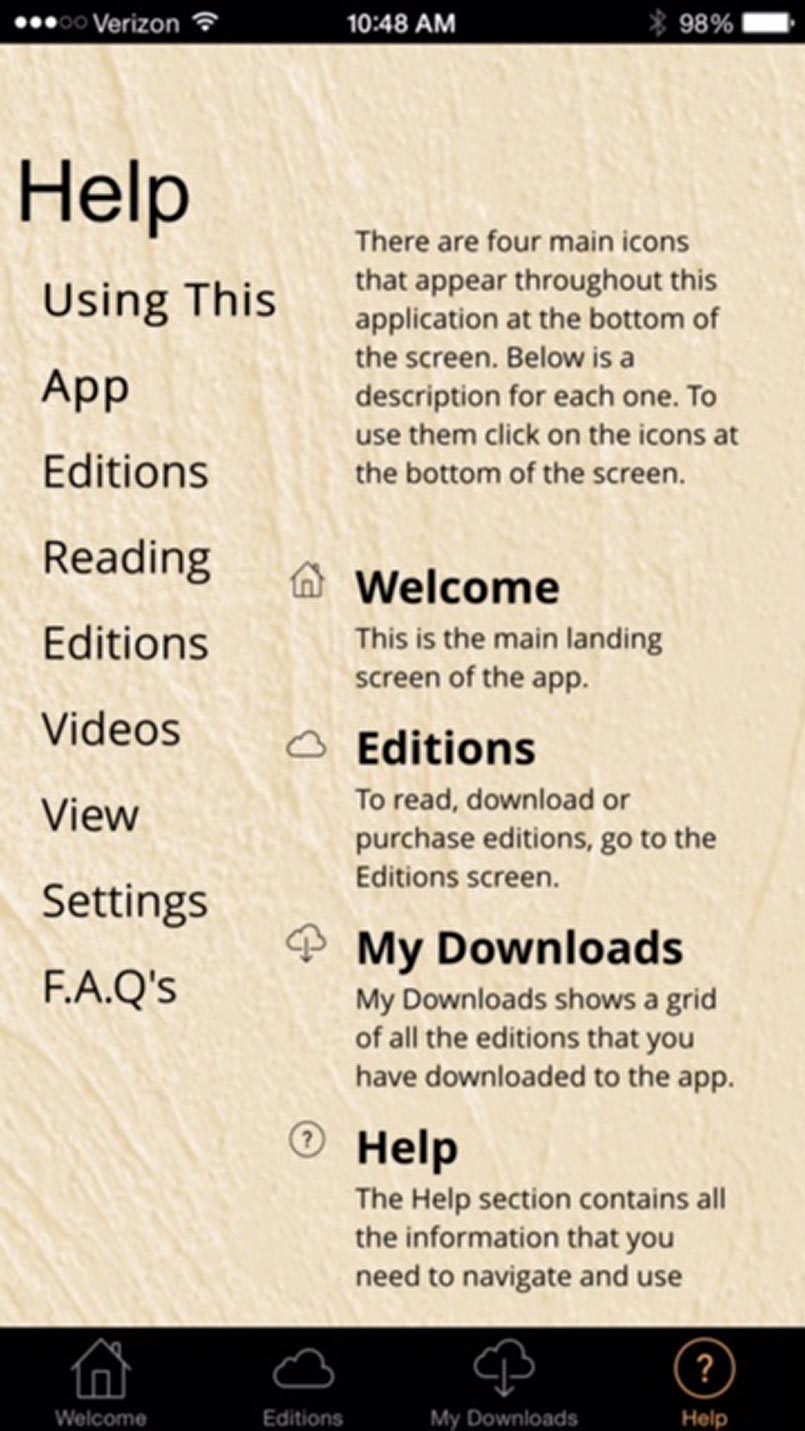
The \"Help\" button gives you key information on navigation and use. This ends our little workshop. You might bookmark this for future reference.
}
];
height: 650,
imageCrop:'false',
transitionSpeed:150});